# Give the manuscript room to read
By [Matthias Fahsold](https://github.com/mfahsold) · Published 20 October 2026 · Updated 2 November 2026 · 7 minutes
This walkthrough follows Lixity’s workspace and its generated demo, including separated analysis layers, passage-anchored speech-direction preparation, and contextual tooltips across chapter navigation, overview return routes and speech controls. [Explore the 3D style-space and speech-direction workflow](speech-direction-and-style-space.html).
A manuscript analysis tool can show you so much about a paragraph that the paragraph becomes awkward to read. Sentence patterns, source lines, markers and research links all have a purpose. They also compete with the next sentence.
Lixity keeps the manuscript at the centre of that review. The interactive workspace opens as continuous prose with **Analysis Off**. The explicit **Analysis** switch displays its state in words; **Analysis overview** opens chapter comparisons with a direct **Back to passage** action. You can inspect what a measurement counted and follow a passage's saved research without losing the place you were reading.
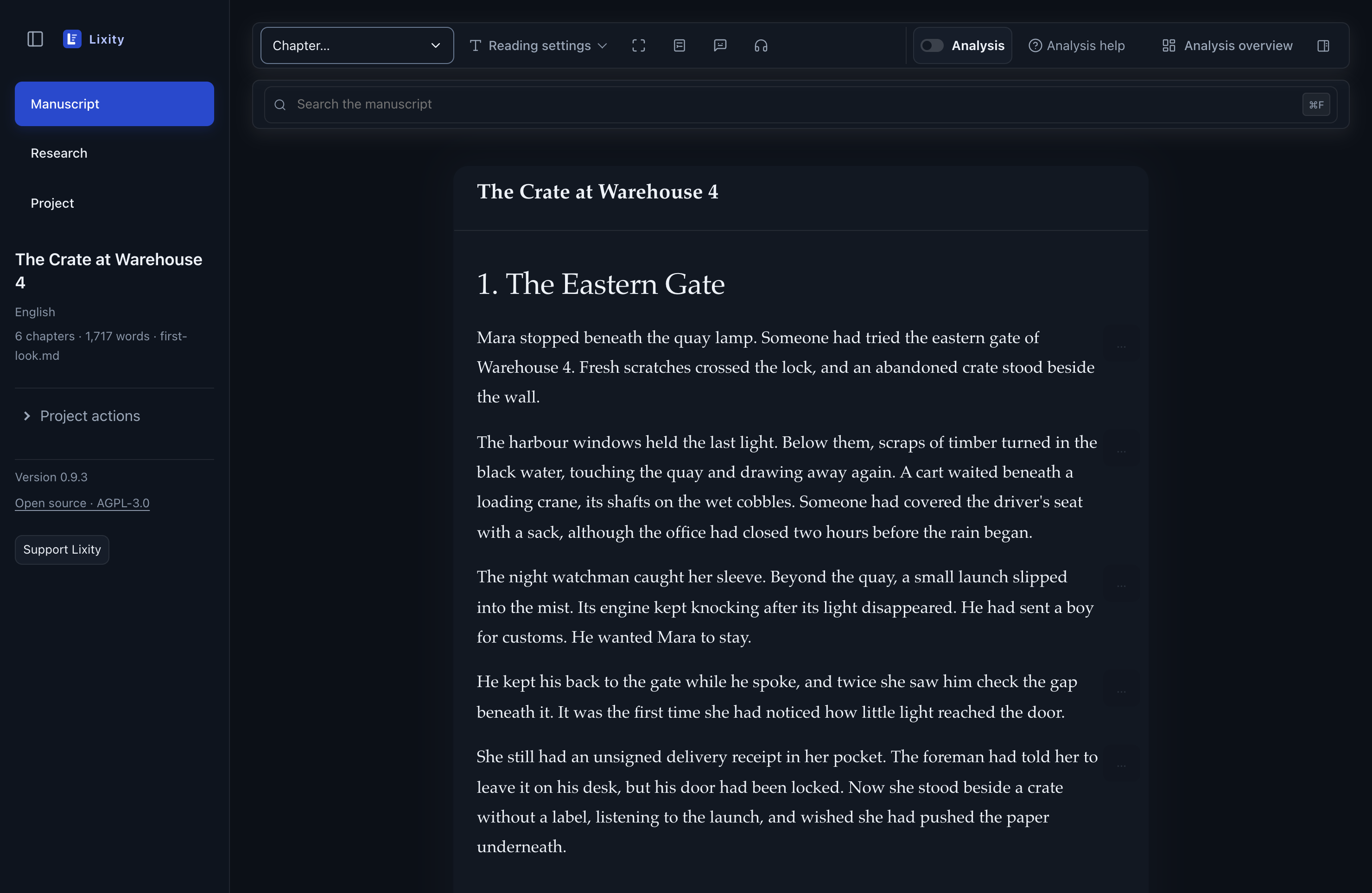
*The reader uses one continuous prose surface. This synthetic capture shows the reader controls; paragraph tools and the companion open separately.*
## Start with a scene
Open the [Warehouse 4 demo](https://lixity.de/demo/report.html). Its six short English chapters follow Mara through an invented harbour incident. Read the opening setting, then use the chapter control to move to chapter 2's action. You can compare their pace before opening a single measurement.
The reader uses ordinary scrolling and text selection. **A−** and **A+** change text size; **Reading settings** adjusts width and line spacing. Those preferences stay in your browser and leave the manuscript unchanged. **Focus reading** hides the surrounding navigation, side tools and both analysis displays temporarily. Its return control, or Escape, restores the workspace and previous display choices.
The aim is a usable reading surface with tools nearby. Manuscript text reflows when its size changes. Images, maps and the style-space view retain their own zoom or movement controls.
## Ask one question of a paragraph
Suppose an action passage feels slower than you expected. Open its **…** menu and choose **Paragraph details**, then **Explain measurement**. The closable passage inspector shows that paragraph's source lines and available tense and style measurements, independently of the Analysis On/Off choice. The **Analysis** switch alone reveals diagnostics without opening a side tool or narrowing the prose. Read the surrounding sentences while deciding whether those measurements explain anything useful.
The same contextual menu opens with a right-click. With the paragraph or its button focused, **Shift+F10** opens it from the keyboard; arrow keys move between actions and Escape closes it. Shift+right-click still reaches the browser's native menu. Selecting text within one paragraph offers a small toolbar when an applicable action is available.
For the text behind a measurement, turn **Analysis** on, choose a metric in the direct **Measure** selector and enable **Counted text**. Its independent **Paragraph comparison** switch controls paragraph markers. The metric and both switches persist in the browser; deliberate **None** and disabled switches survive Off/On and reload. Violet underlines identify counted words, lexical patterns, quoted speech or sentences where the analysis can map them exactly to the displayed text. Hover a mark for its explanation, use a short stationary tap on touch screens, or open **Paragraph details → Explain measurement** with the keyboard or context menu. Escape closes the explanation. Turning Analysis off hides both displays; clearing one switch hides only its own marks.
Two visible keys keep the colors distinct. **Counted text** explains the violet underline on the words or sentence actually counted. **Paragraph comparison** explains blue/orange raw-value markers and down/up arrows for notable paragraphs below/above their chapter median. Both can be visible together while the prose background stays clear. Click the comparison marker or inspect a counted span for its measurement. **Read these marks** keeps the method and counting guidance collapsed until needed.
The compact explanation puts the selected quotation and count first, with the paragraph value and chapter comparison in a separate panel. A sentence's word count does not establish an editorial fault; a literal perception-word match does not establish narrative distance. Some Markdown counting and display projections cannot yet be mapped exactly. Their measurements remain available, with an explicit unavailable explanation instead of guessed highlights. Native text selection, search marks and saved quotations keep their existing anchors; the highlights do not edit the manuscript.
Choose **Analysis overview** when the question calls for chapter comparisons or sentence rhythm. The manuscript remains mounted with the same paragraph text and source anchors. Hiding analysis keeps the active passage inspector or dossier available beside the text. A different sentence length can belong to a scene's purpose or a character's voice. The number locates a difference; reading supplies the judgment about what to do with it.
The overview keeps its review routes visible and puts secondary numbers under **Manuscript measurements**. Open that summary when the question needs them and close it to return to the compact view. A linked scene title similarly reveals grouped **Scene measurements**. Passage measurements cover profiled body paragraphs and list items; other structural elements can remain reading-only. [The coverage reference](https://github.com/mfahsold/lixity/blob/main/docs/WORKSPACE.md#reading-paragraphs) distinguishes paragraph profiles from chapter and corpus measurements.
## Give research its own space
The Warehouse 4 story includes this sentence:
> Someone had tried the eastern gate of Warehouse 4.
Open **Research → Dossiers**, then **View details** on **Warehouse 4 case notes**. The dossier brings together a claim about attempted warehouse entry, a retained customs-log passage and visual references. The incident, people and log are invented. The credited historical images provide visual context and do not verify the fictional incident.
Use **Dossier alongside** to consult a saved dossier while reading the manuscript. On desktop, the project navigation folds down to make room; you can reopen it, and closing the dossier restores the previous choice. Drag the divider to adjust the two reading areas. You can also focus the divider with Tab and use Left/Right; Home/End reach its limits. Narrow screens stack the documents.
The passage inspector and the dossier replace one another as the active side tool. Each has a direct closing route. Display and companion changes try to retain the visible paragraph's position, so consulting context need not mean finding the sentence again. On narrow screens, opening a tool from a passage reveals its heading; closing it or pressing Escape returns to that passage and its control. Brief feedback marks reveals and returns without moving the manuscript surface; reduced-motion preferences disable the optional effects.
## Make the return route explicit
Begin with the opening eastern-gate quotation in the manuscript. Choose **… → Paragraph details → Research for this passage**. The right context groups its linked claims and dossiers, with current dossier decisions separately labelled. Open a title to read the current entry and its retained source references. Use **Linked version** explicitly to inspect the earlier version retained by that association. Close the viewer and choose **Back to passage** to resume the requesting text. On narrow screens the context sits above the manuscript; its close button or Escape returns to the paragraph.
The manuscript quotation, authored claim and retained source passage remain separate records. The passage research list is bounded and shows totals. An empty list means no saved associations, not that the passage contains no facts. Opening a newer record does not silently replace saved version pins, and navigating this route does not create or refresh an association.
The wider **Research → Review** view remains available for saved quotations. Its **Go to manuscript passage** action follows an exact matching anchor. When you leave an open dossier to follow a connection, **Back to dossier** restores that saved dossier version and reading position; the earlier manuscript return remains available. Changed project contexts invalidate a return instead of guessing a destination.
In a configured local project, you can select text within one manuscript paragraph and choose **Link selection to claim**. Review the quotation, choose an existing claim, explicitly permit local retention and save the association. Selecting text or previewing that form writes nothing. The saved connection records what you associated; it does not establish factual support or turn the manuscript into source evidence.
An exact return requires the current paragraph, line range and quotation to match its saved anchor. Changed or ambiguous anchors remain review tasks. Lixity does not silently infer a new connection. The public demo is read-only; saving associations requires a compatible local server and an explicitly configured research project. Research keeps its own explicit-project and retention requirements.
## Keep sources and outputs distinct
The local **Project overview** separates the manuscript and research locations from generated output files and structural findings. It checks the selected folder without moving files, reading manuscript contents or auditing the research archive. Existing output history remains unknown: a filename alone does not prove which manuscript version produced it.
The same read-only inspection is available as `lixity project --project /path/to/book --json`. Output links recheck the selected project when opened. This local folder view is deliberately absent from static reading copies. The [project guide](https://github.com/mfahsold/lixity/blob/main/docs/WORKSPACE.md#inspect-project-structure) explains bounds, unavailable states and the distinction from archive audit.
## Share a reading copy
In the local app, **Project actions → Reading website** downloads a browser-readable project copy. Choose **Review workspace** to share manuscript analysis, with research as a separate choice. The public demo is generated by that same exporter; it uses the product's read-only controls.
For a reader-facing experience, choose **Novel and companion** or **Companion only**. A publication profile selects the dossier sections, images, diagrams and optional citations or offline maps to include. Try the [novel with companion](../demo/reader/index.html) or the [standalone companion](../demo/companion/index.html). Confirming a chapter reveals the selected background material; previewing a chapter does not advance progress. A separate export limit physically leaves later content out.
Unzip the copy and open `index.html`, or host its folder as a static website. The recipient needs no Lixity installation. The copy cannot edit your working project, but its included files can be inspected and copied: local progress is not access control. Review the selected content before sharing; original source files require a separate explicit choice and redistribution rights. The [sharing guide](../guides/research-pdf.html#reading-website) explains the formats and their boundaries.
## Know which document you are reading
The browser reader now retains source structure around the same measured paragraphs: preface, subheadings, quotations, code, notes, dividers and excluded appendix material. Unmeasured text is labeled as reading-only. Paragraph quotation anchors still use the established exact analysis text; inline link or code syntax and pipe tables remain literal where present in that text. This is a reading surface, not a Markdown editor or a complete typesetting engine. Structured [book PDFs](https://lixity.de/guides/research-pdf.html#manuscript-export) keep their existing output behavior.
Built-in manuscript analysis runs locally without uploading the manuscript. Optional external workers have separate data boundaries, and retaining research sources requires permission. Measurements remain heuristic aids to human review.
Try one small loop in the demo: read the opening, inspect one paragraph, then follow the saved warehouse quotation into research and back. The [first-look guide](https://lixity.de/guides/first-look.html) walks through the same project. When you return from a research note, which context do you need to resume reading the sentence?
[All guides](../#guides)[Articles](../blog/index.html)[Source code](https://github.com/mfahsold/lixity)[License](https://github.com/mfahsold/lixity/blob/main/docs/LICENSING.md)[Website measurement](../#website-measurement)[Legal notice](../#impressum)